












Monitor Arm Guide: Single, Dual, and Heavy-Monitor Mounts
A monitor arm is one of the highest-impact upgrades you can make to any gaming or work setup. It costs a fraction of a new display, installs in minutes, and immediately changes how your screen sits, how your desk feels, and how your body holds itself over a long session. Yet most people either skip it entirely or grab whatever's cheapest without understanding whether it actually fits their screen, their desk, or the way they work.
This guide breaks down everything you need to know about monitor arms — single-screen mounts for a clean, focused station; dual-arm rigs for multitaskers and traders; and heavy-duty mounts built for ultrawide and large-format displays. We'll cover mounting options, critical specs, ergonomic positioning principles, and how your monitor arm choice connects to the desk underneath it. Whether you're building your first ergonomic battlestation or upgrading a professional workstation, this is the only monitor arm reference you'll need.
Why Monitor Arms Matter for Ergonomics and Performance
Most monitor stands that ship in the box are fixed, shallow, and almost universally the wrong height for seated ergonomics. They force you to crane your neck down or hunch forward, and they eat up valuable desk real estate that could hold a keyboard, a notepad, or simply nothing at all. A quality monitor arm solves both problems at once: it lifts your screen to the correct eye-level position while returning the footprint it previously occupied back to you as usable space.
From a performance standpoint, the difference is measurable. When your screen is at the right height and distance, you experience less eye fatigue, less neck tension, and fewer micro-adjustments throughout the day. Competitive players and creative professionals who use dual-monitor setups gain the additional advantage of being able to angle each screen precisely for their workflow rather than working around whatever angle the stand allows. Monitor arms are the connective tissue between a well-chosen chair, a well-spec'd desk, and a genuinely ergonomic workstation.
Types of Monitor Arms: Single, Dual, and Heavy-Duty
Single Monitor Arms
A single monitor arm is the most common entry point, and for good reason. It handles one display — typically between 17 and 32 inches — and supports full range-of-motion adjustment: height, tilt, swivel, and rotation. Most single arms use either a gas-spring or spring-tension mechanism to hold the screen in place without continuous adjustment, allowing you to reposition on the fly with one hand. This is enormously useful when switching between sitting and standing if you're working at a height-adjustable desk, since the ideal viewing angle shifts slightly with your posture.
Single arms are available in two main structural formats. Articulating arms (also called jointed or multi-segment arms) provide the widest range of motion, allowing you to pull the monitor close, push it back, or swing it off to the side entirely. Post-style or pole-mounted arms offer a cleaner, more minimal aesthetic and tend to be slightly more stable under heavier loads. For most users with a standard single display, an articulating gas-spring arm in the 4–15 kg weight capacity range (Blacklyte Atlas single monitor arm can reach 2-20 kg) will cover every use case comfortably.
Dual Monitor Arms
Dual monitor arms mount two displays on a single base point, which is one of their key advantages — you only introduce one clamp or grommet point to your desk rather than two. They're popular with developers, video editors, streamers running a game feed alongside a dashboard, and anyone who benefits from side-by-side screen real estate. The best dual arms allow each screen to be adjusted independently in height, tilt, and swivel, giving you the flexibility to stagger screens at different heights or to angle them symmetrically in a curved configuration.
The primary trade-off with dual arms is reach and stability. Two screens create a significantly larger combined moment arm (the rotational force applied to the mount point), so the clamp or grommet needs to grip a thicker, sturdier desk surface. A thin or hollow-core desktop can flex, creak, or fail to hold securely under the load. Before purchasing a dual arm, verify your desk's edge thickness compatibility with the clamp spec and confirm the total weight of both monitors falls within the arm's rated capacity. Most mid-range dual arms handle displays up to about 4–10 kg each (Blacklyte Atlas dual monitor arm can reach 2-20 kg); check both per-arm and total system limits in the product specifications.
Heavy-Duty Monitor Arms
Heavy-duty monitor arms are purpose-built for larger, heavier displays that a standard arm simply cannot support safely. This category encompasses ultrawide monitors (34–49 inches), high-refresh-rate gaming monitors with thick, feature-rich housings, professional color-accurate displays, and curved panels — all of which tend to weigh significantly more than a standard flat panel of the same size. A standard arm rated to 6–8 kg will sag, drift, or fail to hold position under a 12–15 kg ultrawide; a proper heavy-duty arm is rated from 10 kg up to 20 kg or more.
Heavy-duty arms also tend to feature beefier VESA mounting plates, reinforced pivot joints, and stronger spring or pneumatic mechanisms to counteract the greater torque. Some are single-arm designs optimized for one large display; others are stacked or side-by-side configurations for users running dual ultrawides, which is a genuinely demanding load that requires both a robust arm and a very solid desk surface. If you're investing in a premium ultrawide for an immersive gaming setup or a professional creative workflow, matching it with a properly rated heavy-duty arm is not optional — it's the only way to protect both the investment and the ergonomic benefits the display is meant to deliver.
Mounting Types: Clamp, Grommet, and Wall Mount
How the arm attaches to your surface matters as much as the arm itself. The three standard options each have clear use cases:
- Desk clamp: The most common and easiest to install. A C-clamp mechanism grips the edge of your desktop from above and below. Works with most desks up to around 80mm edge thickness. No permanent modification required, so it's ideal for rented spaces or shared offices.
- Grommet mount: Passes through a pre-drilled hole in the desktop (typically 20–30mm diameter) and tightens from below. Offers a cleaner, more integrated look and can be more stable than a clamp on certain desk surfaces. Requires either a pre-existing grommet hole or willingness to drill one.
- Wall mount: Attaches directly to a wall stud or mounting plate. Eliminates any load on the desk surface entirely, making it the most stable option for very heavy displays. Ideal for standing desk users who want the arm to stay in place as the desk moves up and down independently. Requires a suitable wall and professional-level installation confidence.
For most home office and gaming setups, a high-quality desk clamp is the practical default. It's quick to install, requires no modifications, and works with virtually every desk on the market. Grommet mounting becomes attractive when aesthetics are a priority or when you're dealing with a thinner desk edge that clamps struggle to grip securely.
Key Specs to Check Before You Buy
Monitor arms look similar from a distance, but the specifications underneath the surface determine whether a given arm will actually work well for your setup. Before purchasing, verify every item on this list:
- Weight capacity: Compare the arm's rated maximum weight against the actual weight of your monitor (found on the manufacturer's spec sheet). For single arms, leave a 20% buffer. For dual arms, check both the per-arm limit and the total combined limit.
- VESA compatibility: Most monitors and arms use the VESA MIS standard. Common patterns are 75x75mm and 100x100mm. Larger displays may use 200x200mm or custom patterns — confirm before buying.
- Screen size range: Arms specify both minimum and maximum screen sizes they're designed to support. A screen too small may not balance properly; one too large may exceed structural limits.
- Adjustment range (height travel): Check how high and low the arm can position the monitor relative to the desk surface. This matters especially for tall users or sit-stand workflows.
- Desk edge thickness compatibility: Clamp-mount arms specify a maximum grippable thickness. Glass desks, very thick solid-wood tops, or desks with curved edges may not be compatible with standard clamps.
- Cable management: Better arms route cables internally through the arm channels, which keeps the setup clean. Cheaper arms leave cables dangling externally.
How to Position Your Monitor for Ergonomic Comfort
Owning a monitor arm only delivers its ergonomic benefit if you actually dial in the positioning correctly. The widely cited standard from occupational health guidelines recommends positioning the top of your monitor at or just below eye level, with the screen approximately an arm's length away (roughly 50–70cm for most users). This keeps your cervical spine in a neutral position and reduces the sustained downward or upward gaze that accumulates into neck and shoulder tension over hours of use.
Tilt is the other frequently overlooked variable. A slight backward tilt of 10–20 degrees is generally more comfortable than a perfectly vertical screen, particularly if your monitor is at or slightly below eye level, because it allows the eyes to track down the screen without the head dropping forward. For dual-monitor users, angle both screens inward to form a slight V-shape around your central position rather than placing them in a flat line; this reduces the degree of head rotation required to see each display's edges. On a height-adjustable standing desk, remember that your ideal monitor height changes when you stand — one of the key ergonomic advantages of an arm over a fixed stand is how effortlessly you can raise or lower the screen each time you transition.
For more ergonomic setup guidance tailored to both gaming and productivity, explore Blacklyte's dedicated Ergonomics resource and Gaming Hub, which cover posture, desk setup, and long-session comfort in depth.
Pairing Your Monitor Arm with the Right Desk
A monitor arm is only as good as the surface it's mounted to. For clamp mounts, the desk needs a sufficiently thick, solid edge — hollow-core and budget MDF tops can deform under clamping pressure, especially with heavier arms or dual configurations. For height-adjustable standing desks, the interaction between the arm and the desk matters even more: as the desk moves, every component on it moves with it, and a poorly attached arm can introduce wobble that becomes amplified at standing height.
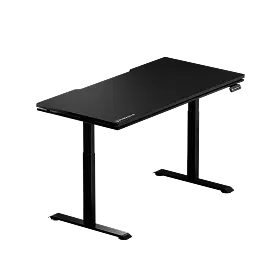
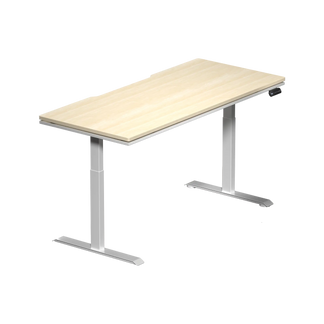
The Blacklyte Atlas Desk and Atlas Lite Standing Desk are engineered to pair naturally with monitor arms. Their desktop surfaces provide the edge thickness and structural rigidity that clamp mounts require, while their cable management systems allow you to route monitor cables cleanly through the desk rather than leaving them draped across the surface. The Atlas Desk's integrated power supply and magnetic surface features further simplify the process of building a clean, functional multi-monitor station. If you're planning a standing desk setup with a monitor arm, both Atlas models offer the structural foundation that makes the pairing genuinely effective rather than a compromised workaround.
Browse the full Blacklyte desk collection or use the desk comparison tool to find the right foundation for your setup.
Common Monitor Arm Mistakes to Avoid
Even experienced desk builders make avoidable errors when selecting or installing monitor arms. The most common issues tend to fall into a predictable pattern, and knowing them in advance saves both money and frustration.
- Buying by price alone: A cheap arm that cannot hold its position under load, drifts over time, or vibrates with every keystroke is worse than no arm at all. Budget for quality, particularly if you're mounting a display worth several hundred dollars or more.
- Ignoring desk compatibility: Confirm edge thickness and surface material before ordering a clamp-mount arm. A glass desk, a very thin desktop, or an unusual edge profile may require a grommet mount or alternative attachment strategy.
- Exceeding weight ratings: Do not assume a margin of safety that isn't specified. Overloading an arm causes joint wear, drift, and in serious cases, monitor drops.
- Placing screens too high: The most common ergonomic misconfiguration is mounting the screen at eye level with the center of the display rather than the top edge. This results in sustained upward gaze and neck extension over time.
- Neglecting cable management: A messy cable run from the display to the desk undercuts both the aesthetic and practical benefits of the arm. Route cables through the arm's built-in channels or use cable clips to keep them contained.
- Not accounting for sit-stand transitions: If you have a height-adjustable desk, set your arm's tension and height range so that the monitor travels comfortably through the full desk range without bottoming out or reaching its maximum extension.
Building a Setup That Works as Hard as You Do
The right monitor arm transforms a functional desk into an ergonomic workstation. Whether you're mounting a single display for a clean, focused setup, running dual screens for maximum workflow efficiency, or supporting a heavy ultrawide for immersive gaming, the principle is the same: your screen should work around your posture, not the other way around. Take the time to match arm type to display weight, verify mounting compatibility with your desk surface, and dial in the ergonomic positioning correctly — and the investment pays dividends in comfort and performance across every session.
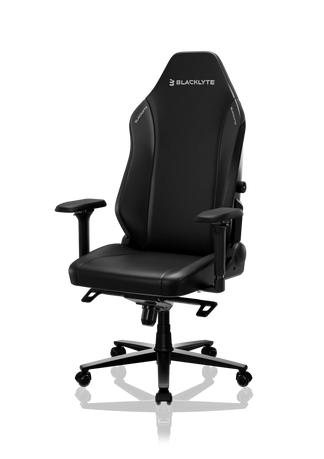
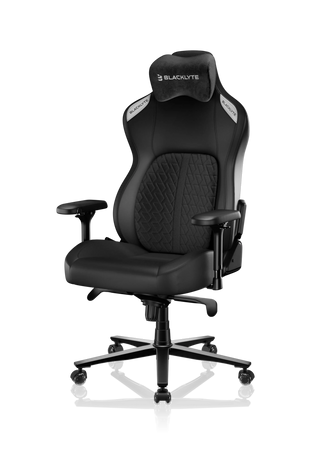
A monitor arm doesn't exist in isolation, though. It's part of a complete ergonomic ecosystem that includes your chair, your desk, and how all three interact with your body over time. Explore Blacklyte's full range of ergonomic accessories, height-adjustable desks, and gaming chairs to build a setup engineered from the ground up for long-session performance — whether you're grinding ranked matches or hitting a project deadline.
Need Help Choosing the Right Setup?
Our team is here to help you build an ergonomic station that fits your space, your screens, and how you work. Whether you have questions about desk compatibility, accessory pairings, or which Blacklyte chair fits your setup best, we're ready to assist.
Contact Us


