









Best Desks for PC Gaming: Tower Placement, Cable Routes, and Depth
Most gaming desk guides spend their time debating RGB lighting and cup holders. But if you run a desktop tower, the real questions are more fundamental: Is there enough depth to keep your monitor at the right distance? Where does the tower actually go? And how do you stop your setup from turning into a cable nightmare? These are the details that separate a desk that looks good in a photo from one that actually works during a six-hour session.
Whether you're building your first tower rig or upgrading a setup you've outgrown, this guide covers everything you need to know about choosing the best desk for PC gaming — with a hard focus on the practical stuff: desk depth, tower placement strategies, and cable routing that stays clean over time. We'll also look at how Blacklyte's Atlas desk lineup addresses these challenges with purpose-built features, not afterthoughts.
Why Desk Specs Matter More Than You Think
A gaming desk is the foundation of your entire setup. Get it wrong and everything else — your monitor position, your peripherals, your posture — gets compromised along with it. Yet most buyers focus almost exclusively on surface area and aesthetic, treating depth, weight capacity, and cable infrastructure as secondary concerns. For casual setups with a laptop or a compact mini-ITX build, that approach might be fine. For a full tower PC with dual monitors, a gaming headset stand, and an audio interface, it's a recipe for a cluttered, uncomfortable workstation.
The good news is that understanding a handful of key specifications makes the decision much clearer. Once you know what desk depth actually does to your viewing distance, where your tower realistically fits in a given layout, and what cable management infrastructure looks like on a well-designed desk versus a basic one, the right choice becomes obvious rather than overwhelming.
Desk Depth: The Spec Most Gamers Overlook
Desk depth — the measurement from the front edge to the back wall — has a direct impact on monitor distance, which in turn affects eye strain, posture, and how immersive your gaming experience actually feels. The general ergonomic guideline places monitor screens roughly 50–90 cm (20–35 inches) from your eyes, depending on screen size. On a desk that's only 50–55 cm deep, a 27-inch or larger monitor pushed to the back wall is already borderline too close, and that's before you account for a monitor arm or thick bezel.
For tower gaming setups, a minimum desk depth of 70–80 cm (roughly 28–32 inches) is strongly recommended. This gives you enough real estate to position your monitor correctly, keep your keyboard and mouse in front of you without crowding, and still have usable surface space alongside your peripherals. Desks in the 80–100 cm depth range open up even more flexibility, particularly for ultra-wide monitors or triple-screen configurations.
It's worth noting that depth also affects how much leg room you have underneath the desk. A deeper surface naturally extends further over your legs when you're seated, which is generally comfortable — but pair that with a desk that sits too low or a chair without proper recline range, and it can become restrictive. Always consider desk depth alongside seat height and your own seated leg length when evaluating fit.
Tower Placement: Floor, Desktop, or Dedicated Shelf?
Tower placement is one of the most underplanned aspects of a gaming desk setup. Where your PC case actually lives determines how you route cables, how much clearance your GPU needs, how dusty your system gets, and how often you'll be crawling under or behind your desk to plug things in. There's no universally correct answer, but each placement option has real trade-offs worth understanding.
Floor Placement
Placing the tower on the floor is the most common approach, especially for mid-tower and full-tower cases. It keeps the desktop surface clear, puts the hot air exhaust below desk level, and makes the case easy to access for upgrades. The downside is airflow: carpeted floors can restrict bottom-mounted intakes and accelerate dust accumulation. If you go this route, a small riser or anti-vibration mat keeps the case elevated, improves airflow, and protects both the case feet and your floor.
Desktop Placement
Some gamers prefer keeping a compact mid-tower or mini-ITX build on the desktop surface for quick USB access and the aesthetic of a visible build. This works well with smaller cases but can eat significantly into your usable desk space. If you go this route, position the tower to one side of your primary monitor rather than directly behind it, and factor the case footprint into your depth calculations before buying the desk.
Dedicated Tower Shelf or Side Cabinet
Some premium desks include a dedicated tower shelf — either integrated under the surface or mounted to the side frame. This is the cleanest solution because it keeps the tower close enough to minimize cable runs, elevates it off the floor for better airflow, and reserves the full desktop surface for your peripherals. When evaluating desks with this feature, check that the shelf dimensions actually accommodate your case size, including any top-mounted AIO radiators or handles.
Cable Management: From Chaos to Clean
A tower gaming setup generates a significant number of cables: power to the monitor, USB peripherals, audio, display cables to the GPU, ethernet, and the main power cord to the PC itself. Without a desk that offers proper cable routing infrastructure, all of that ends up either draped over the back of the desk or bundled in zip ties hanging in mid-air — both of which look messy and make reconfiguring your setup frustrating every time you add new hardware.
The features that actually make a difference in cable management include:
- Under-desk cable trays or raceways — these mount beneath the surface and hold power strips, surge protectors, and bundled cables off the floor, dramatically cleaning up the area behind your chair
- Grommets or routed holes in the desk surface — cutouts that let cables pass from the desktop down through the surface cleanly, rather than spilling over the edge
- Integrated power ports — built into the desk surface itself, these eliminate the need for a visible power strip entirely and reduce peripheral cable length requirements
- Rear cable channels along the back edge — a vertical channel running the width of the desk that collects cables before they drop, keeping the back panel of the desk looking intentional rather than chaotic
For tower setups specifically, the cable run from your PC to your monitor and peripherals is longer than it would be with a laptop. That extra length needs to go somewhere — and a desk with no cable infrastructure means it ends up on the floor or draped across your chair. Planning the cable route before you buy the desk (measuring the actual distance from your tower's likely position to each peripheral) saves a lot of frustration later.
Standing Desks for Gaming: Do They Actually Work?
Height-adjustable standing desks have become a serious option for gaming setups, not just office workers. The ergonomic case for alternating between sitting and standing during long sessions is well established — it reduces the fatigue that builds up in your lower back and hips during extended play, and it makes it much easier to dial in the right monitor and keyboard height for your specific proportions. The question for tower users is whether the height adjustment mechanism complicates cable management.
The answer depends entirely on the desk's design. A standing desk with no cable management infrastructure is actually harder to manage than a fixed desk, because cables need enough slack to accommodate the full height range of the lift mechanism without going taut. Desks designed with standing-desk cable management in mind build in that slack with routing channels, spiral wrap, or retractable systems that move with the frame.
If you're running a tower setup on a standing desk, keeping the tower on the floor (rather than on the desk surface) also simplifies the height transition — your display cables, USB connections, and audio all need to reach the desk at its maximum height, but your tower stays stationary. Just make sure the cable lengths allow for the full height range of the desk without straining connections.
What to Look for in a PC Gaming Desk
Before you browse, it helps to have a clear checklist of what actually matters for a tower-based gaming setup. Here are the features worth prioritizing:
- Depth of 70 cm or more — the non-negotiable starting point for comfortable monitor distance with a 27-inch or larger display
- Weight capacity that covers your full setup — monitor(s), peripherals, speakers, and any desktop accessories add up fast; aim for at least 50–80 kg rated capacity
- Integrated or compatible cable management — grommets, trays, and rear channels are all meaningful upgrades over a plain flat surface
- Sturdy, stable frame — wobble is a real issue on cheaper desks and becomes more noticeable the more you add to the surface
- Built-in power access — integrated outlets on the surface make a significant quality-of-life difference for tower setups with multiple peripherals
- Tower accommodation — whether that's a side shelf, a floor-level cutout in the base, or simply enough clearance for your case to sit beside the desk frame without obstruction
Surface material also matters more than most people expect. A surface that resists scratches and holds up to heavy peripherals without warping or delaminating over time is worth paying attention to — especially if you run a mousepad that covers most of the desk, since that mat will take a lot of friction and pressure over years of use.
Blacklyte Atlas Desks: Built Around Your Tower Setup
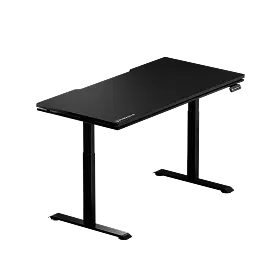
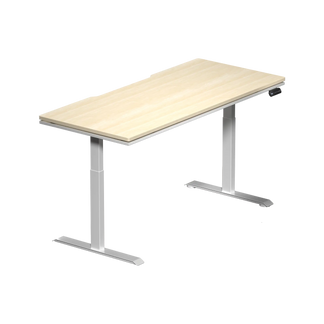
Blacklyte's Atlas desk lineup was designed from the ground up for gaming workstations rather than adapted from office furniture — and the difference is visible in the specifics. Both the Atlas Desk and the Atlas Lite Standing Desk include the same built-in electrical socket — an integrated power strip that brings mains sockets to the desk (it distributes power rather than supplying it, and there's no USB) — so your tower, monitors, and peripherals can all connect without a floor-level power strip adding to your cable burden. Both desks are rated to a high maximum load — up to 275 lb (125 kg) on the Atlas and 265 lb (120 kg) on the Atlas Lite — easily covering a full tower rig, multiple monitors, and peripherals. The built-in cable management system includes routed channels and organization points that work especially well for tower setups, where cable runs tend to be longer and more complex than on compact builds.
The Atlas Lite's height-adjustable frame is engineered with cable movement in mind, accommodating the full range of height adjustment without cables going taut or tangling during transitions. On the Atlas specifically, the desktop features a magnetic surface that works with compatible Blacklyte accessories, and its smart lighting is controlled through Blacklyte's proprietary Atlas Driver software — meaning you can manage the desk's integrated features without a nest of additional app ecosystems. (The Atlas Lite does not include the magnetic surface or smart lighting.) For gamers who want to compare the two models side by side before deciding, Blacklyte's desk comparison page lays out the key specs clearly.
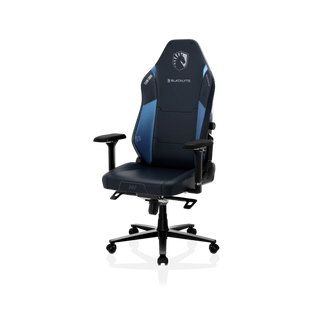
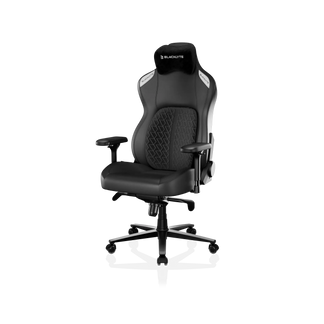
It's also worth noting that the Atlas desks are designed to pair naturally with Blacklyte's gaming chair lineup. If you're building or upgrading a full setup, exploring Blacklyte's gaming chairs alongside the desk options makes sense — the ergonomic design principles that inform the chairs (proper lumbar support, 4D armrest positioning, and the correct seat-to-desk height relationship) are the same ones that shaped the Atlas desk dimensions. You can review Blacklyte's ergonomic guidelines in detail on their Gaming Hub.
Final Thoughts
Choosing the best desk for PC gaming with a tower setup comes down to three things done well: enough depth to put your monitors at the right distance, a clear plan for where your tower actually lives, and cable infrastructure that handles the complexity of a full desktop rig without turning into a daily frustration. None of these are solved by RGB lighting or a racing-stripe aesthetic — they're solved by thoughtful specs and deliberate design.
If you're in the market for a desk that addresses all three from the start, Blacklyte's Atlas lineup is worth a serious look. And if you're building out the full setup — chair, desk, and accessories together — browsing Blacklyte's full product range gives you a clear picture of how everything fits together, both ergonomically and aesthetically.
Ready to build your ideal tower gaming setup?
Have questions about which Atlas desk is right for your rig, or want help pairing it with the right chair? Contact the Blacklyte team — they know gaming setups inside out and can help you get the fit exactly right.


